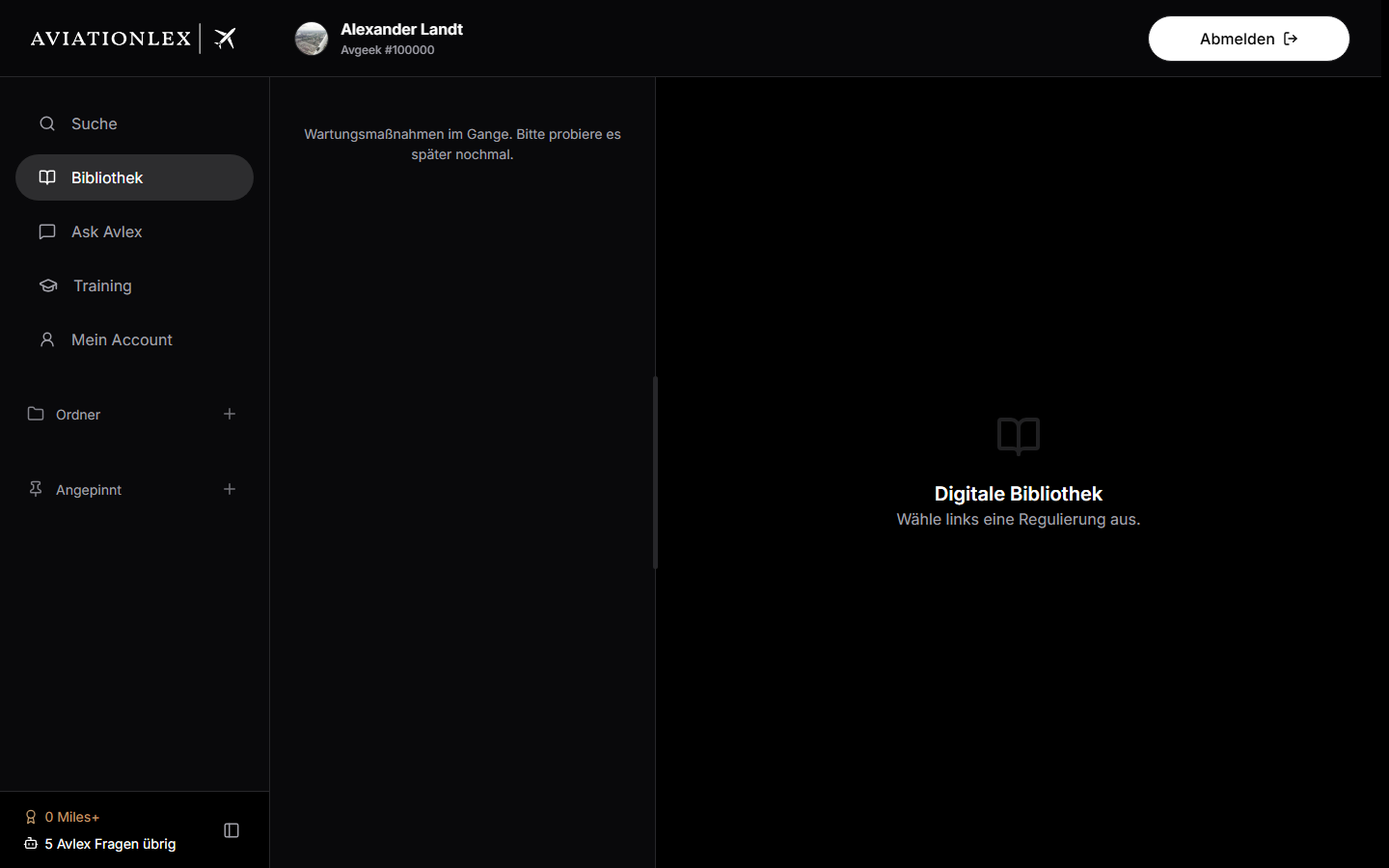
Workspace
Your Workspace helps you organise regulations — visible in the sidebar with the sections Folders and Pinned.
- Create a folder: Via the
+next to the “Folders” section (“Add folder”). Enter a name; if you leave it empty, “Folder N” is assigned automatically. - Pin: Pin a document directly from Search or the Library. It lands in the root area first and can be moved from there into a folder.
- Rename / Move / Delete: Right-click (or double-click) on an entry to open the context menu: “Rename”, “Add to folder” / “Move to…”, “Unpin” (Pin), or “Delete folder”. If you delete a folder, the pins it contains are also deleted (with a confirmation prompt).
- Sort: Folders and pins can be reordered by drag-and-drop. Each folder shows the number of its pins as a badge.
- Colour-code: Via the context menu you can give a folder or pin one of seven icon colours (red, orange, yellow, green, blue, violet, pink) or leave it on the default — handy for grouping topics visually.
Note: According to the plan comparison, the Workspace is smaller in the Free plan; in the paid plans the full personal Workspace is available.